
Field Note / c-06
MCP (Model Context Protocol) — Why It Changes Everything
Before 2025, every time I connected an AI Agent to an external tool, I had to write a custom integration from scratch....
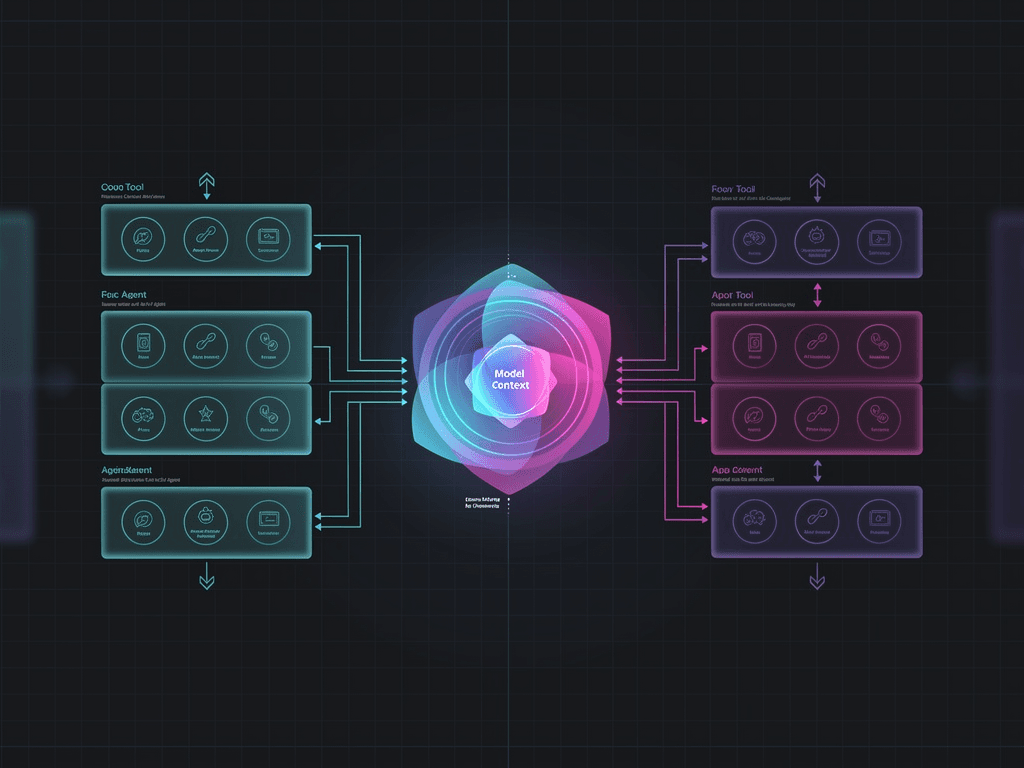
MCP (Model Context Protocol) — Why It Changes Everything
Opening
Before 2025, every time I connected an AI Agent to an external tool, I had to write a custom integration from scratch. Hooking up Slack: 200 lines. Google Calendar: 300 lines. A database: 400 lines. And every time I switched LLM providers, the entire integration layer had to be rewritten. After MCP came along, I slashed the tool integration code for my 8-Agent community management system from 3,200 lines down to 600 — because I no longer had to write an adapter for every tool. What MCP does is simple: it defines a standard interface between AI and tools. But this simple thing is fundamentally reshaping how Agents are built.
The Problem
Before MCP, connecting tools to an AI Agent looked like this:
Agent <-> Custom Adapter A <-> Slack API
Agent <-> Custom Adapter B <-> Google Calendar API
Agent <-> Custom Adapter C <-> Database
Agent <-> Custom Adapter D <-> GitHub API
Each adapter had to handle: authentication, data format conversion, error handling, and retry logic. Four tools meant four completely different codebases. Switch to a different LLM (say, from OpenAI to Claude), and every adapter's function calling format had to change.
This is the N x M problem: N LLM providers x M tools = N x M sets of integration code.
MCP turns it into N + M: each LLM implements one MCP client, each tool implements one MCP server, and they communicate through a standard protocol.
Core Architecture
What Is MCP
Model Context Protocol is an open-source protocol standard released by Anthropic in late 2024. In February 2026, Anthropic donated MCP to the Agentic AI Foundation (AAIF) — a foundation under the Linux Foundation co-founded by Anthropic, Block, and OpenAI, with support from Google, Microsoft, AWS, Cloudflare, and Bloomberg.
In one sentence: MCP is the USB port for AI Agents calling external tools.
Architecture Components
┌─────────────┐     MCP Protocol     ┌─────────────┐
│  MCP Client │ <────────────────->  │  MCP Server │
│  (LLM side) │   JSON-RPC 2.0      │  (Tool side) │
│             │   stdio / HTTP SSE   │             │
│  Claude     │                      │  Slack      │
│  ChatGPT    │                      │  GitHub     │
│  Gemini     │                      │  Database   │
│  VS Code    │                      │  Calendar   │
└─────────────┘                      └─────────────┘
MCP defines three core capabilities:
| Capability | Description | Example |
|---|---|---|
| Tools | Callable functions | Send a Slack message, create a GitHub Issue |
| Resources | Readable data sources | Read file contents, fetch database schema |
| Prompts | Reusable prompt templates | Code review template, translation template |
Latest MCP Developments (March 2026)
- Monthly SDK downloads hit 97 million (Python + TypeScript)
- Over 10,000 active MCP Servers in the ecosystem
- Claude, ChatGPT, Gemini, Copilot, and VS Code all have native support
- New MCP Apps extension: tools can return interactive UI components (dashboards, forms, visualizations)
- New production-grade features: async operations, stateless mode, Server Identity
- Official MCP Registry launched for discovering available MCP Servers
Implementation Details
Step 1: Build an MCP Server
Here's an example using a community knowledge base tool:
from mcp.server import Server
from mcp.types import Tool, TextContent
from mcp.server.stdio import stdio_server

# Create MCP Server
server = Server("community-knowledge-base")

# Register tool: search knowledge base
@server.tool()
async def search_knowledge(query: str, top_k: int = 3) -> list[TextContent]:
    """Search for relevant content in the community knowledge base

    Args:
        query: Search keywords or question
        top_k: Number of results to return
    """
    # Actual retrieval logic
    results = await vector_db.search(query, limit=top_k)
    formatted = []
    for r in results:
        formatted.append(TextContent(
            type="text",
            text=f"[Relevance: {r.score:.2f}] {r.payload['content']}"
        ))
    return formatted

# Register tool: add new knowledge
@server.tool()
async def add_knowledge(content: str, source: str, category: str) -> TextContent:
    """Add new content to the knowledge base

    Args:
        content: The knowledge content to add
        source: Origin (e.g., community discussion, documentation, FAQ)
        category: Category (e.g., technical, business, events)
    """
    doc_id = await vector_db.upsert(content, metadata={
        "source": source,
        "category": category,
        "added_at": datetime.now().isoformat()
    })
    return TextContent(type="text", text=f"Added successfully, document ID: {doc_id}")

# Register resource: knowledge base stats
@server.resource("kb://stats")
async def get_kb_stats() -> str:
    """Get knowledge base statistics"""
    stats = await vector_db.get_stats()
    return f"Total documents: {stats['total']}, Last updated: {stats['last_updated']}"

# Start Server (communicate via stdio)
async def main():
    async with stdio_server() as (read_stream, write_stream):
        await server.run(read_stream, write_stream)
Step 2: Use MCP Client in Your Agent
from mcp import ClientSession, StdioServerParameters
from mcp.client.stdio import stdio_client

async def agent_with_mcp():
    """Agent calls tools via MCP"""

    # Connect to MCP Server
    server_params = StdioServerParameters(
        command="python",
        args=["community_kb_server.py"],
    )

    async with stdio_client(server_params) as (read, write):
        async with ClientSession(read, write) as session:
            await session.initialize()

            # Discover available tools (automatic — no hardcoding needed)
            tools = await session.list_tools()
            print(f"Available tools: {[t.name for t in tools.tools]}")
            # Output: ['search_knowledge', 'add_knowledge']

            # Call a tool
            result = await session.call_tool(
                name="search_knowledge",
                arguments={"query": "how to request a refund", "top_k": 3}
            )
            print(result.content)
Step 3: Composing Multiple MCP Servers
This is where MCP truly shines — a single Agent connects to multiple MCP Servers, each providing different capabilities.
from mcp.client.stdio import stdio_client

# Configure multiple MCP Servers
MCP_SERVERS = {
    "knowledge_base": StdioServerParameters(
        command="python", args=["kb_server.py"]
    ),
    "slack": StdioServerParameters(
        command="npx", args=["-y", "@anthropic/mcp-slack-server"]
    ),
    "github": StdioServerParameters(
        command="npx", args=["-y", "@anthropic/mcp-github-server"]
    ),
    "calendar": StdioServerParameters(
        command="npx", args=["-y", "@anthropic/mcp-google-calendar-server"]
    ),
}

class MultiToolAgent:
    def __init__(self):
        self.sessions: dict[str, ClientSession] = {}
        self.all_tools: list = []

    async def connect_all(self):
        """Connect to all MCP Servers and aggregate tool lists"""
        for name, params in MCP_SERVERS.items():
            # Each Server gets its own connection
            read, write = await stdio_client(params).__aenter__()
            session = await ClientSession(read, write).__aenter__()
            await session.initialize()
            self.sessions[name] = session

            # Aggregate tools (auto-discovered — no hardcoding)
            tools = await session.list_tools()
            for tool in tools.tools:
                self.all_tools.append({
                    "server": name,
                    "tool": tool,
                })

        print(f"Connected to {len(self.sessions)} Servers, "
              f"{len(self.all_tools)} tools total")

    async def call(self, tool_name: str, args: dict):
        """Call any tool, automatically routed to the correct Server"""
        for entry in self.all_tools:
            if entry["tool"].name == tool_name:
                return await self.sessions[entry["server"]].call_tool(
                    name=tool_name, arguments=args
                )
        raise ValueError(f"Tool {tool_name} does not exist")
Pairing with Anthropic Tool Search
When you have dozens or even hundreds of tools, stuffing all their descriptions into the prompt wastes tokens. Anthropic's recently launched Tool Search and Programmatic Tool Calling solve exactly this:
# Conceptual illustration: load only relevant tools on demand
# instead of including all tool definitions in every request
relevant_tools = await tool_search.find_relevant(
    query=user_message,
    available_tools=all_mcp_tools,
    top_k=5  # Select only the 5 most relevant tools
)
# Now the prompt contains 5 tool definitions instead of 50
Lessons from the Field
Before and After Migration
Here's a comparison from migrating my 8-Agent community management system from custom integrations to MCP:
| Metric | Before | After |
|---|---|---|
| Tool integration code | 3,200 lines | 600 lines |
| Time to add a new tool | 2–4 hours | 15–30 minutes |
| Cost to switch LLM providers | Rewrite adapter layer | Change one config line |
| Tool call latency | 150–300ms | 80–200ms |
| Number of available tools | 6 | 12 (using community Servers) |
The biggest change wasn't the code reduction — it was the reduced cognitive load. Previously, every new tool meant figuring out authentication, error handling, and format conversion. Now I find an existing MCP Server, configure it, and it just works.
Pitfalls I Encountered
Pitfall 1: Server stability varies widely. Community-maintained MCP Servers differ enormously in quality. Some Servers lack proper error handling and crash outright when a tool call fails. Solution: add timeout and retry on the MCP Client side — any tool call exceeding 10 seconds gets cancelled automatically.
Pitfall 2: Process management in stdio mode. MCP's stdio mode communicates by spawning child processes, which occasionally become zombies during long-running operations. Solution: add health checks for Server processes and restart them hourly. For production, use HTTP SSE mode instead of stdio.
Pitfall 3: Quality of tool descriptions. The tool descriptions exposed by MCP Servers are meant for the LLM — if they're unclear, the LLM won't know when to call the tool or how to pass parameters. Solution: maintain your own override config for tool descriptions, replacing poor defaults.
Pitfall 4: Security concerns. MCP Servers have access to your data — a malicious or buggy Server could leak it. Solution: only use Servers from trusted sources, restrict their network access (allow only necessary endpoints), and add Human-in-the-Loop for sensitive operations.
Comparison
| Dimension | Custom Integration | MCP | LangChain Tools |
|---|---|---|---|
| Dev cost | High (write each tool separately) | Low (use existing Servers) | Medium (some wrappers) |
| Flexibility | Highest | High (can build custom Servers) | Medium (framework constraints) |
| Ecosystem | Self-maintained | 10,000+ Servers | 300+ integrations |
| Cross-model support | Requires adapters | Native support | Depends on LangChain |
| Standardization | None | Industry standard | Framework standard |
| Production stability | Self-controlled | Depends on Server quality | Depends on framework version |
Takeaways
Three key takeaways:
- MCP has won the protocol war — Claude, ChatGPT, Gemini, Copilot, and VS Code all support it natively. Linux Foundation backing. 97 million SDK downloads per month. If you're still writing custom tool integration code, it's time to migrate.
- Use community Servers first, build your own later — The MCP Registry has tens of thousands of ready-made Servers covering mainstream SaaS tools. Before writing your own, check if one already exists.
- MCP isn't just about saving code — it changes how you design Agents — When the cost of connecting tools drops low enough, you can give Agents access to more tools, letting them operate across a much broader capability space. That's a qualitative shift, not a quantitative one.
If you're building Agents, I'd recommend spending half a day converting one existing tool integration to MCP. Experience the flow of "write a Server, connect a Client, auto-discover tools" firsthand — it'll change how you think about Agent development.
Have you started using MCP? Which MCP Server has been your favorite? Come chat about it at the Solo Unicorn Club.